SixBack — Web Flasher
Local SoundTouch cloud replacement on an ESP32 stick.
Bose shut their cloud down — this brings the preset buttons back.
Source code & bug reports: github.com/tostmann/SixBack
Local SoundTouch cloud replacement on an ESP32 stick.
Bose shut their cloud down — this brings the preset buttons back.
Source code & bug reports: github.com/tostmann/SixBack
Plug your ESP32 board into USB, click below, and pick the serial port that appears.
The browser detects the chip and flashes the matching image.
Fresh install — erases all settings
Update existing — keeps WiFi + presets + Spotify auth
Version … — pick Fresh install for a new stick,
Update existing for a stick that already runs SixBack.
UART appears as a CH340/CH343 serial
port and also carries the console log. The board's native USB socket now works for
the complete run as well — factory flash and the “Connect device to Wi-Fi” step
have been verified end-to-end over it, because this image answers the provisioning handshake on
both ports. Releases before v0.8.35 answered on the UART port only.
USB socket the console log
shares the port with the handshake, so in rare cases the browser may report “Improv Wi-Fi
Serial not detected”; if that happens, or if a run stops at
Hard resetting via RTS pin, just retry, use the UART socket, or set up
Wi-Fi through the SixBack-… hotspot the stick opens. Single-socket boards
(XIAO S3, ESP32-C3 / C6 / C5) have only one port and are flashed and
provisioned over it as usual.
The buttons above flash the 16 MB S3 layout. Boards with only 8 MB flash + PSRAM (e.g. Seeed XIAO ESP32S3) need this dedicated image instead — the standard one does not fit and the flash would fail partway through.
Fresh install (S3 8 MB) — erases all settings
Update existing (S3 8 MB) — keeps settings
Not sure which one you have? The Nxx in the module name tells the flash size:
N8… = 8 MB, N16… = 16 MB.
XIAO ESP32S3 / Sense = 8 MB; XIAO ESP32S3 Plus = 16 MB
(use the standard buttons above). PSRAM is required either way.
Use the update button only for the variant the device was originally flashed
with — a device running the 16 MB layout must use the standard update button,
and vice versa. Already-flashed devices show their layout in the Web UI status
line ("ESP32-S3 8MB" / "16MB").
Manual flashing (esptool): factory @0x0 ·
firmware @0x10000 ·
littlefs @0x610000
SoundTouch 10/20/30, firmware 27.0.6.x /
27.0.3.x) and rewrite its cloud URLs to point at the stick
— each speaker reboots once in the process (~60 s). Existing presets
are preserved automatically. After the initial boot pass the
auto-mode stays armed as a periodic cron (default every 30 minutes)
and picks up newcomers automatically.http://sixback.local/ right after provisioning and flip
the Auto-Migrate at Boot switch at the top
before the device finishes discovering your speakers.
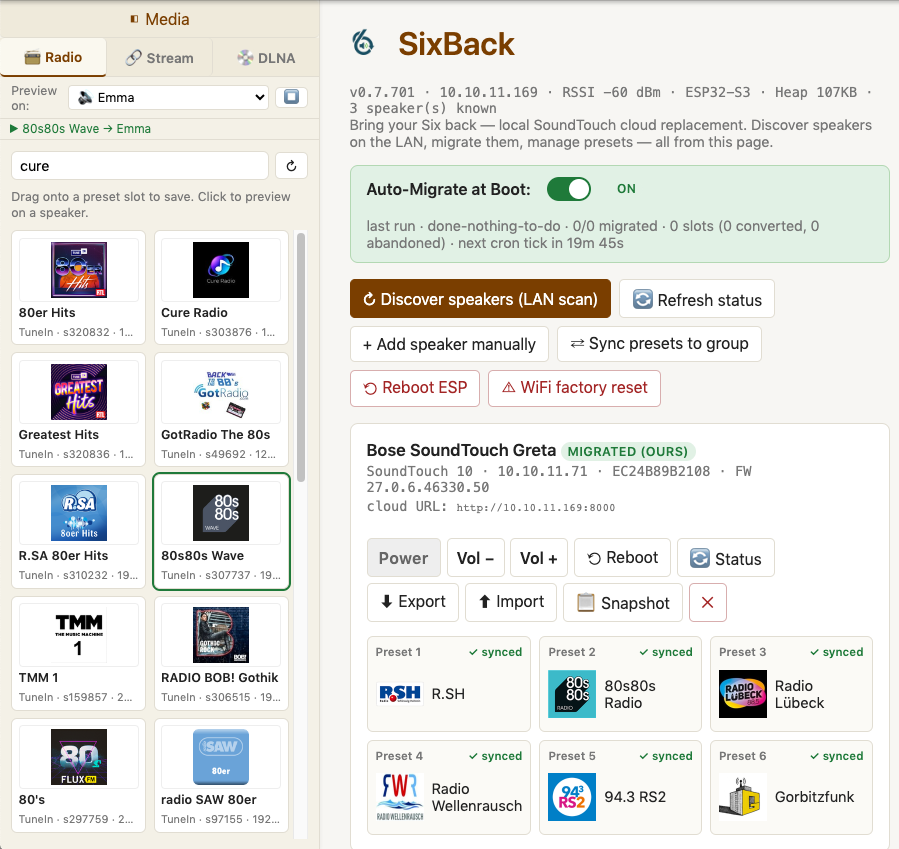
After flashing, point your browser at http://sixback.local/: discover the speakers
on your LAN, migrate them off the dead Bose cloud, and manage all six preset buttons by
drag & drop — search TuneIn / add custom streams in the sidebar, drag tiles onto preset
slots, push to the speaker.
manifest.json.0x0 in one shot. Old contents are erased.sixback.local on mDNS;
open http://sixback.local/ to manage your Bose speakers.*-firmware.bin and *-littlefs.bin
files next to the factory images are for.
Each target ships three artefacts you can download and flash manually with
esptool.py:
sixback-<tgt>-factory.bin — full image, flash to 0x0sixback-<tgt>-firmware.bin — app only, for OTAsixback-<tgt>-littlefs.bin — Web UI assets, for FS-OTAExample:
esptool.py --chip esp32s3 -p /dev/ttyACM0 write_flash 0x0 sixback-s3-factory.bintostmann@gmail.com.